
Resource planning
An event-production resource calendar: plan crew and vehicles across jobs
The project calendar shows when a production happens. The resource plan answers the next question: which people and vehicles are committed, and what is still open?
Two views of the same production week
A production can look complete in a project calendar while a lighting position remains unfilled. Each job can also look fully staffed while the same person is booked in two places. You need both the production view and the individual resource view.
SAVIE's resource plan offers production, resource, agenda and month views. Choose the view around the question: start with the production to check completeness, and with the resource to check one person's commitments across jobs.
In the production view, separate demand from confirmations
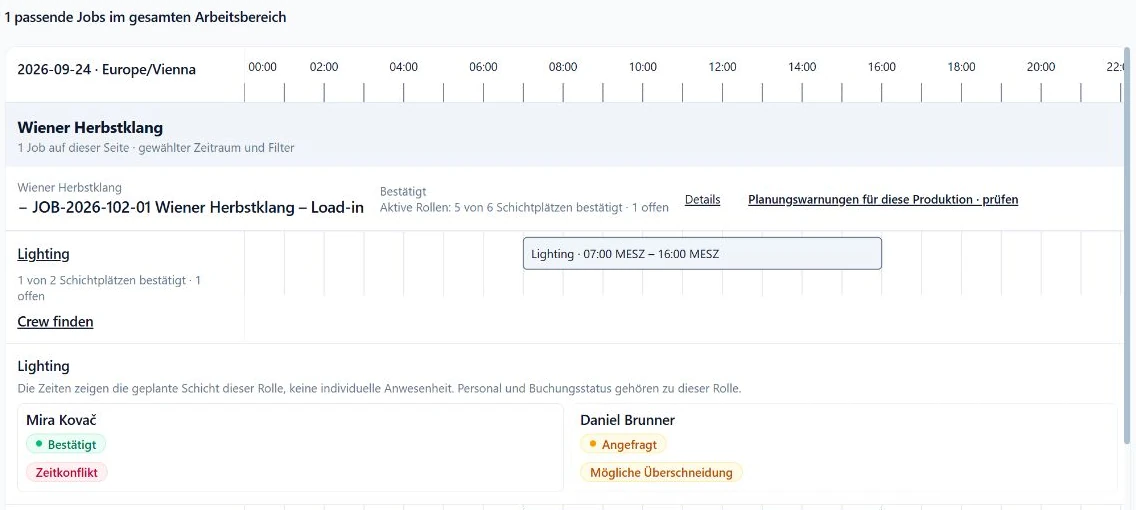
Set the relevant period and filter by project or job title. Check the active roles: how many shift positions are needed, how many are confirmed and which replies are outstanding? A request is not a confirmation, even when the person's name is visible.
The fictional load-in below has five of six positions confirmed. Lighting has one confirmed person and one pending request. The remaining slot is still a dispatch task. Role windows describe planned shifts, not individual attendance records.
In the resource view, read overlaps in context
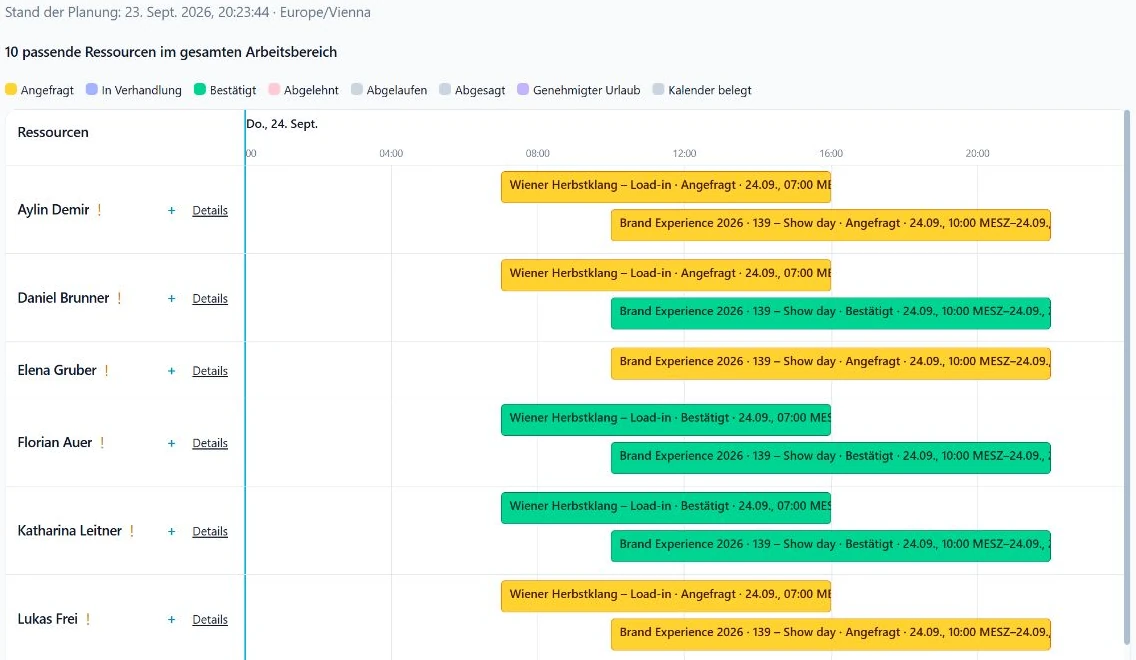
Switch to the resource view to see bookings and blocked time on a shared timeline. When productions overlap, this helps distinguish someone who is committed from someone who has merely received several requests.
SAVIE distinguishes definite time conflicts from possible overlaps that need a closer check of times or status. Use a warning to begin that check: open the bookings, compare their windows and clarify the commitment with the people involved. Mentally moving a bar does not change the original booking.
An empty row is not a commitment
No visible booking initially means only that no matching booking is shown in the current view. Check the period and active filters before interpreting it as availability. Hidden statuses or excluded projects can change the picture.
Absences, blocks and synchronised busy-calendar times add context where they are available for that person and workspace. They do not turn a free gap into acceptance of a specific job. Confirmation remains a separate step.
- Does the view include the full window, including load-in and load-out?
- Are the relevant projects, people and booking statuses visible?
- Are absences or blocked periods relevant to the decision?
- Has the person confirmed, or have they only been asked?
Include vehicles and turnaround
A staffing decision can also change transport. If a shift moves, review the driver, passengers and vehicle availability. SAVIE's fleet planning uses departure through available-again time, which may extend beyond the vehicle's return to the warehouse.
Keep preparation and turnaround explicit in your operational plan. A calendar without overlapping bars is useful, but it does not by itself prove that a person can travel between two venues or that a truck will be ready for the next load.
Use a short review after every schedule change
A new show time can affect several parts of a production. Check the changed role and its staffing, then the crew's adjacent jobs and the transport. Assign someone to communicate the change and review replies.
A well-maintained spreadsheet may be sufficient for a small, isolated production. A shared resource plan becomes more useful when the same people and vehicles serve several productions. The crew-plan template linked below helps you organise your current requirements before a demo.
| Area | Question |
|---|---|
| Production | Which roles and phases change? |
| Staffing | Which confirmations are affected, and what remains open? |
| Resources | Which previous or following jobs overlap? |
| Transport | Do the driver, vehicle and turnaround still fit? |
| Handover | Who informs the crew and checks the replies? |