
Template & checklist
Event crew schedule template for load-in, show and load-out
A useful crew plan contains more than names and times. It shows the required role, the state of each booking and what needs checking when the production changes.
Download the templates
The Excel workbook contains a blank plan and a fictional worked example. Use one row per person and shift, choose a booking status and calculate planned working hours from start, finish and breaks. The PDF is a compact printable briefing and handover sheet. Both downloads are available without registration.
The templates are in German and designed for operational planning. They are not actual-hours records, payroll sheets or confirmation that a shift complies with applicable rules. Record actual hours separately after the job.
What belongs in a crew schedule
Start with the project, venue and the person responsible for the current version. Then separate the phases. Load-in, show operation and load-out may need the same disciplines but different tasks, hours and handovers.
Include required roles before assigning people. Otherwise an unfilled role can disappear from the plan. Leave the person's name blank and the status at Offen (Open). A named request becomes Angefragt (Requested); use Bestätigt (Confirmed) only after receiving acceptance.
- Project and production phase.
- Discipline and task, including required equipment experience.
- Person and unambiguous booking status.
- Start and finish with dates, plus planned break minutes.
- Meeting point, responsible contact and transport notes.
- Plan version and outstanding questions.
Fill the Excel plan step by step
Record the requirement first and add people afterwards. Each row represents one person on a specific shift. If you need two audio technicians, create two rows. If two people cover the same role at different times, give each their own row and window.
Enter full dates and times for start and finish. A load-out from 22:00 to 02:00 ends on the following day. The workbook calculates planned hours from that difference minus the break. Incomplete inputs leave the calculation open; an end before the start or an excessive break produces a check message.
Blue input cells are editable; the hours column contains formulas. There are 20 prepared rows. For larger plans, extend formulas and validation deliberately. The workbook does not automatically detect double bookings across separate files.
Example: a visible name is not yet a confirmed position
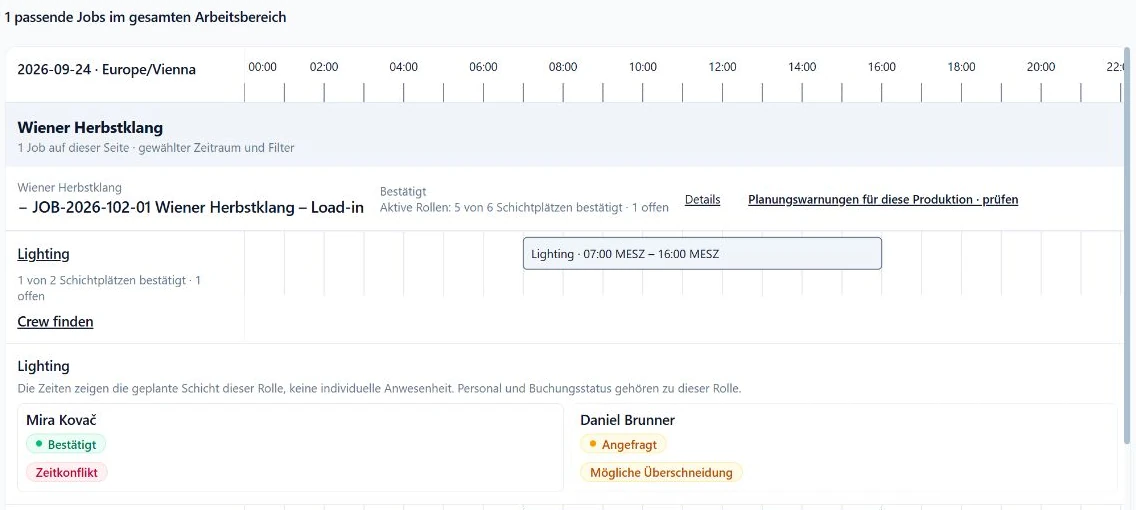
The fictional Wiener Herbstklang load-in needs a second lighting technician. A simple name list could make a confirmed person and a requested person look equally settled. The schedule keeps their states separate: the requirement is only covered once the appropriate confirmation exists.
The SAVIE view below demonstrates that distinction with an open position, a confirmed person and a pending reply. The spreadsheet follows this logic manually. When circumstances change, update the status and reconcile it with the responses you receive.
Check the briefing and version before sharing
The PDF collects the details that need to be easy to find on the day: meeting point, access, contacts, phases, transport and open items. Use it alongside the crew schedule instead of forcing every instruction into narrow spreadsheet cells.
Give the plan a clear version and name the person who communicates changes. Saving another file is not enough when the call time or meeting point changes. Affected people need the new information and a way to raise questions.
- Does the plan match the latest agreed shift times?
- Are all required roles included, including unfilled ones?
- Are requests and confirmations clearly distinguished?
- Are meeting point, access and contacts current?
- Do drivers, passengers and vehicles fit the transport?
- Is someone responsible for communicating changes and checking replies?
When it is worth moving beyond a spreadsheet
A spreadsheet is a useful starting point for a manageable production with one clear owner. It becomes harder to maintain when several dispatchers share the crew pool, replies arrive across channels or multiple productions use the same vehicles.
Make the manual checks visible: where do you detect overlaps, where do confirmations live and who updates every affected file after a cancellation? SAVIE brings role requirements, booking responses and resource planning together. Bring the completed example to a demo so the discussion starts with your actual workflow.