
Conflict checks
Spot double bookings for crew and vehicles before the schedule is final
An empty-looking calendar does not prove availability. Learn how to separate real overlaps, pending responses and missing information before the call sheet is final.
Three conflict states need three responses
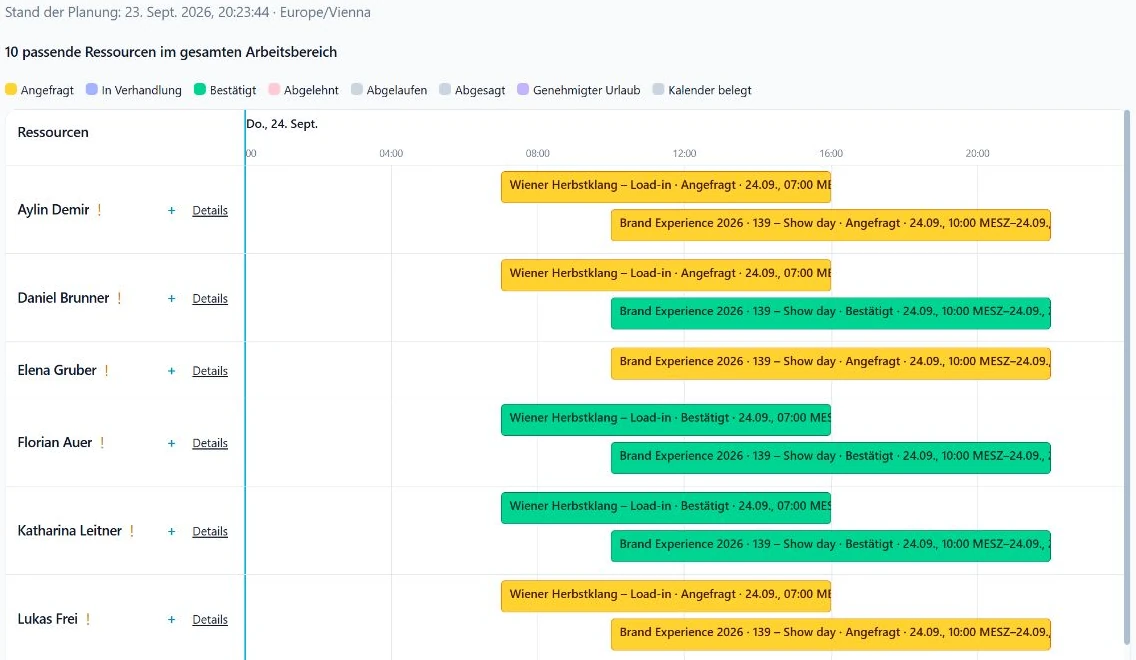
The same person appears on two productions. It looks like a double booking, but the operational state may differ: one shift is confirmed, another request is still waiting for a reply, or there is simply no reliable availability information for the period.
Do not treat these cases alike. A confirmed overlap needs a concrete scheduling change. An unanswered request needs a deadline and possibly a backup. Unknown availability calls for a direct check before a name on the plan becomes dependable cover.
| Signal | Useful next step |
|---|---|
| Confirmed overlap | Open the source bookings, compare times and change one assignment. |
| Request awaiting a reply | Check the response deadline, contact the person and prepare an alternative. |
| Availability unknown | Review calendar and absence evidence, then ask the person directly. |
| Vehicle already allocated | Correct the full allocation window or choose another vehicle. |
Use the resource schedule as an investigation view
SAVIE's resource schedule places crew bookings, availability evidence and vehicles on one timeline. You can see which job uses each resource and where time windows touch. When a warning appears, open the actual entry to identify the job, status and interval behind it.
Colours and warnings speed up review, but the source data still matters. Dates, precise times and available-again values are particularly important for multi-day work, overnight shifts and transport movements.
Filters explain the view, not true availability
A common mistake starts with filtering. If you show only confirmed bookings or one selected job, other entries disappear from the screen. That does not make the resource free. The filter changes the display, not the underlying commitments.
Reset the view when a period looks unexpectedly empty. Check whether vehicles are visible, which resource type is active and whether the date range covers the whole assignment. Start broad, then narrow the view once you have ruled out hidden evidence.
- Confirm the active date range and timezone.
- Review job, person and status filters on screen.
- Restore any hidden booking statuses.
- Follow each warning to its source booking.
Separate crew warnings from vehicle validation
For crew, SAVIE presents evidence and warning states from bookings, absences and connected calendars. A calendar busy block means the dispatcher should investigate; it is not a response to a booking request. An empty calendar view does not mean the person has accepted the shift either.
Fleet planning validates and blocks overlapping allocations for the same vehicle or coupled resource. That check can only use the intervals recorded in the system. A late return or extended workshop visit still needs to be updated.
Resolve the issue at its source
Do more than record that a conflict exists. Open both affected jobs and compare the role, start, finish, travel and buffer. Decide whether to change a time, request another person or reassign the vehicle. Then review the same period again in the resource schedule.
For an outstanding crew request, keep ownership explicit: who is waiting for whom, when is the reply needed and which backup is ready? That turns a warning into a clear scheduling decision.
Conflict triage checklist
Use this order before approving the final schedule. It works with spreadsheets and shared calendars too, while exposing where a common planning view can remove back-and-forth.
- Identify the resource, affected jobs and full time windows.
- Classify confirmed bookings, unanswered requests and unknown availability separately.
- Reset filters and open the source bookings.
- Include travel, handover, turnaround and available-again time.
- Contact the person or assign an alternative, then record the decision.
- Recheck the period after the change.