
Calendars and availability
Use Google and Microsoft 365 calendars for crew availability
Private calendars can expose useful commitments without becoming a booking response. Set up the connection, data sharing and refresh path clearly.
Separate the two calendar directions
Crew planning has two distinct calendar jobs. First, crew members can bring busy periods from Google Calendar or Microsoft 365 into SAVIE as availability evidence. Second, confirmed SAVIE bookings can be taken into personal calendars through files, quick-add links or a subscribed feed.
The two paths complement each other but do not create a universal two-way sync. An external event can flag a possible overlap. A SAVIE booking still has its own request and confirmation status.
| Direction | Purpose |
|---|---|
| Google/Microsoft 365 → SAVIE | Use existing calendar commitments as evidence during crew planning. |
| SAVIE → calendar app | Export one confirmed booking or subscribe to changes through a personal feed. |
| Booking response in SAVIE | Acceptance, decline and negotiation remain in the booking workflow. |
The individual owns the provider connection
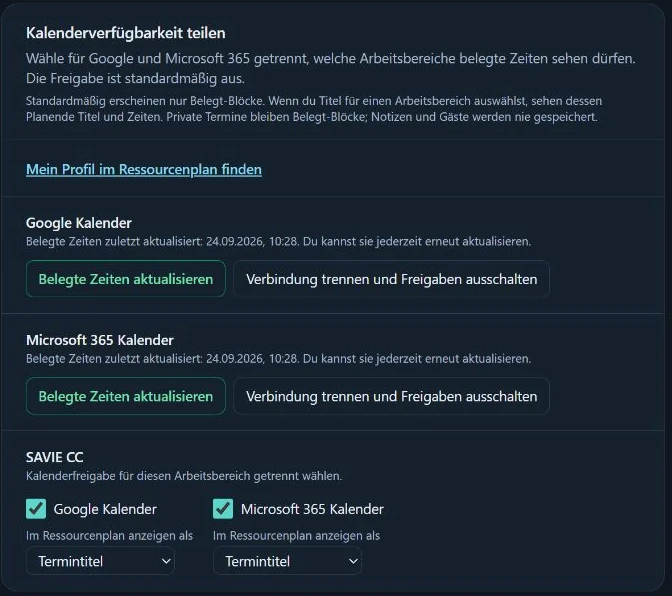
The crew member connects their Google or Microsoft 365 account in personal settings. They then choose separately for each SAVIE workspace whether calendar information may be used for planning. That keeps the scope of sharing visible.
Availability depends on the configured provider integration and its last successful refresh. A dedicated Microsoft 365 connection does not mean that every Outlook, Exchange or CalDAV account is supported.
Share only busy time or include the event title
For each allowed workspace, the person can choose whether SAVIE uses a generic busy interval or may also use the event title. The privacy-conscious setting is often enough for dispatch: it shows that a conversation is needed without exposing private context.
Google may require additional permission when titles are shared. Decide whether that detail has enough operational value. The choice is made separately for each workspace.
Check freshness before making the assignment
A connected calendar is only as useful as its most recent successful refresh. SAVIE shows connection and refresh state and provides a manual sync action. When a result looks surprising, check those details first and ask the person if the period remains unclear.
A busy block is neither a decline nor a binding acceptance of the SAVIE job. It is evidence for the dispatcher. The actual commitment comes from a request, response and confirmed booking.
Put confirmed SAVIE bookings in a personal calendar
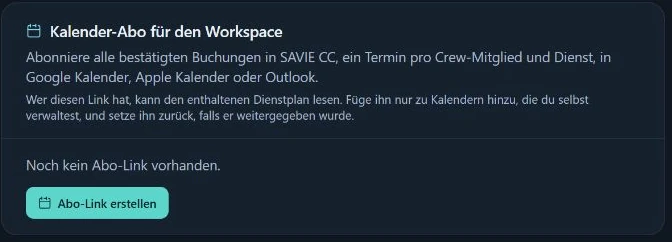
A confirmed booking can be downloaded as an ICS file or opened through quick links for Google Calendar, Outlook.com and Microsoft 365. For continuing updates, SAVIE also provides private calendar feeds. Crew members subscribe to their own bookings; dispatchers can use a feed for confirmed bookings in their workspace.
A feed URL is a secret and should be handled like access. It can be reset or turned off in settings. Each calendar app decides how often it refreshes subscriptions, so changes may not appear instantly in every provider.
- Use one-off export for a specific confirmed booking.
- Choose a subscription when later changes should be pulled into the calendar.
- Keep feed URLs private and reset one if it may have leaked.
- Spot-check timezone, venue and status after import.
Connection and sharing checklist
Test the workflow with a fictional calendar event and a confirmed demo booking. This makes both the privacy decision and refresh path visible before the wider team starts using it.
- Confirm the provider and required account type.
- Let the affected person establish the connection.
- Enable sharing deliberately for each workspace.
- Choose between busy-only and event-title sharing.
- Check the last refresh and a test period in the resource schedule.
- Test subscriptions and one-off export separately; protect the feed URL.