
Approval and export
Approve post-production working time and export it to Excel
Review comes before export. Follow a clear path from open time records through approval to a defined Excel handover.
Turn entries into a reviewable period
After a production, time data often sits in several states: captured, submitted for review, queried or already approved. A dependable month end starts with a defined period and an explicit selection of people.
Do not begin with the export button. Check that all expected employees are present and that late entries belong to the right dates. Freelancer booking actuals follow a separate workflow and are not automatically part of this Company Time export.
Compare planned, recorded and approved time
The hours overview compares planning, captured time and approval. Use differences as the start of a review: did the build run late, is a break missing, or was an entry assigned to the wrong day?
A numerical difference does not prove an error. Confirm the actual work with the person and the production context. Only then should the record be approved or returned for correction.
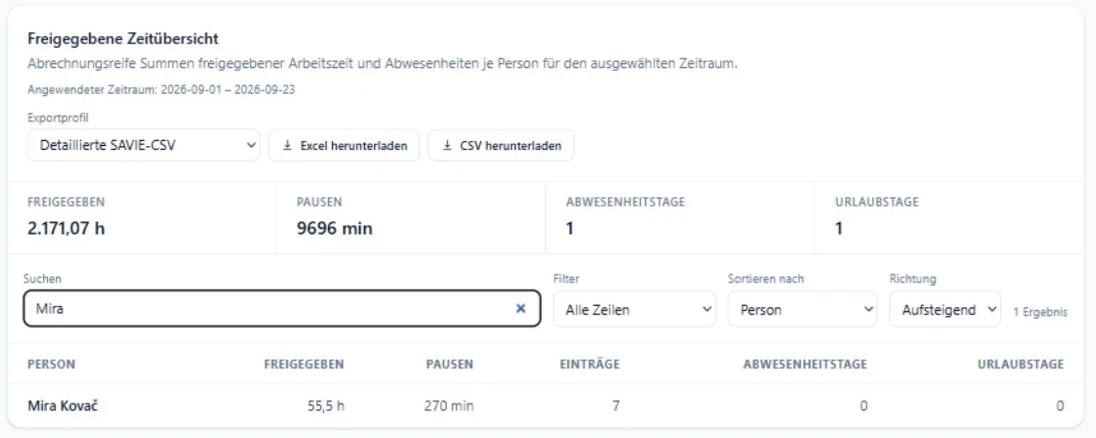
Finish corrections before approval
Review the person, date, work hours, break and note in the time register. Entry history keeps changes traceable. Resolve missing information before approving the record.
Permissions matter: Company Time approvals belong to the authorised administrators. Being able to dispatch jobs does not automatically grant the same time-review rights.
- Do the person, date and company period match?
- Are work hours and breaks plausible?
- Is the difference from plan explained?
- Are the correction and approval traceable in history?
Lock the reviewed period
SAVIE can lock a selected period after final review. Period history shows the status and lock date. Depending on the workspace policy, administrators may reopen a period later and may have to provide a reason.
The lock creates a defined state for export. It does not replace a company policy for late submissions. Decide who may request reopening and how recipients of an earlier file will be told about a correction.
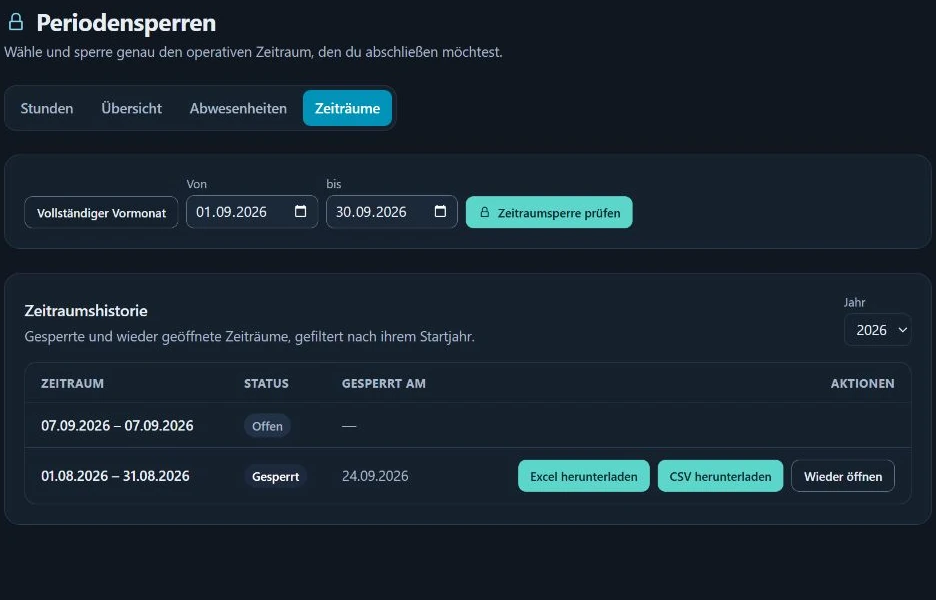
Choose Excel or CSV for the recipient
Locked periods can be exported as XLSX or CSV. Choose the format the next process can actually use, and record the period and creation date. Open the file and spot-check that people and values match the period view.
The export is a structured handover. It does not configure payroll integration or prove compliance with every employment, collective-agreement or tax rule. Premiums, expenses and other calculation logic remain part of the responsible downstream process.
Month-end and handover checklist
Use the same sequence for every export. A repeatable close exposes differences sooner and reduces competing file versions.
- Select the full period and expected employees.
- Review open or unusual entries and resolve questions.
- Approve only records that have been checked.
- Lock the period after the final review.
- Export XLSX or CSV for the recipient and open a sample.
- Define the file name, handover route and correction process.